
Register a synced passkey (iOS)
Register a passkey
To register a passkey on your device, follow these steps:
- Open a web browser and sign in to Security info.
- Sign in with multifactor authentication (MFA).
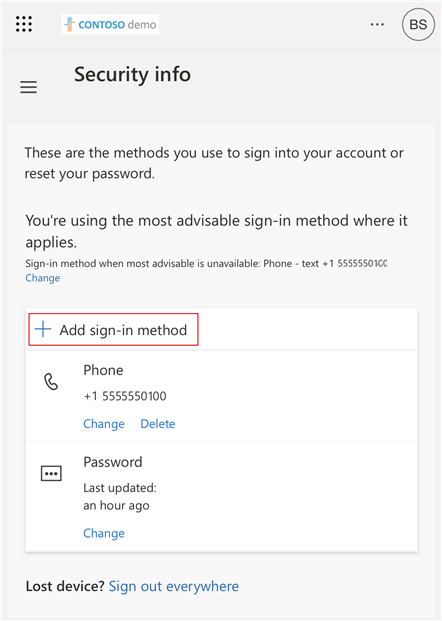
- Tap + Add sign-in method.
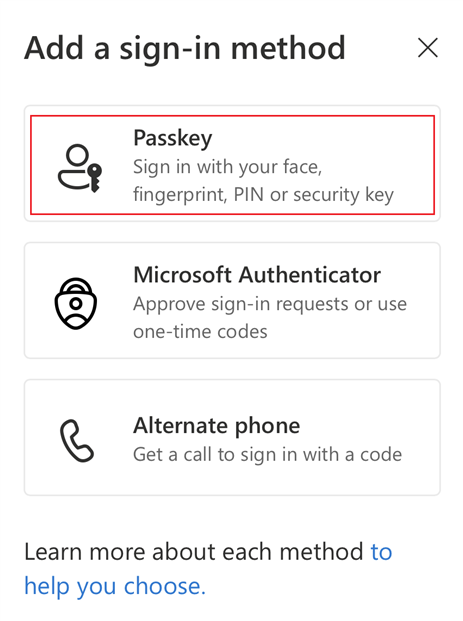
- Tap Passkey.
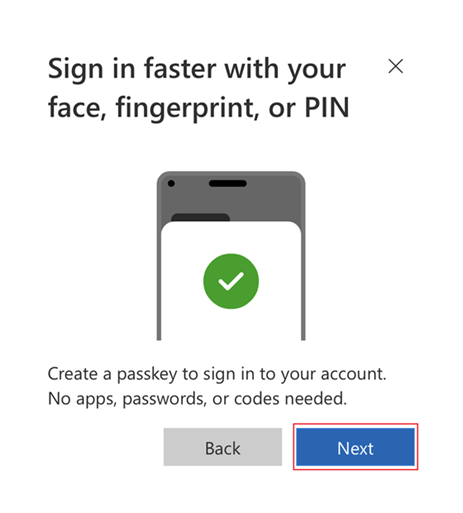
- Tap Next.
- On iOS, tap Next.
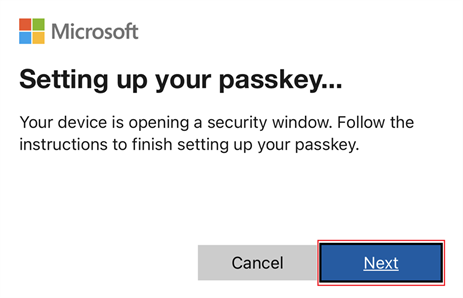
On Android, tap Continue.
NoteThe steps to enable passkey providers on Android might vary based on the make and model of your device. Search for Passkey on your device settings, or consult your device manufacturer for guidance. If your device runs Android 14 and you can't enable Authenticator as a passkey provider, we recommend that you upgrade to Android 15.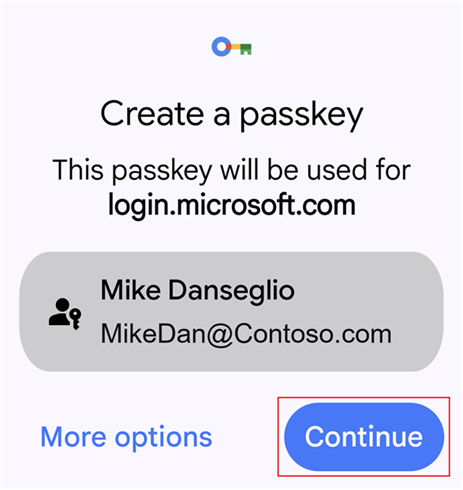
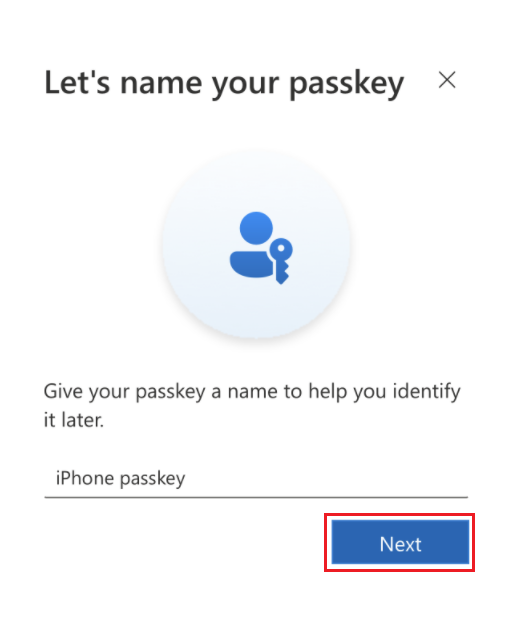
- Name your passkey and tap Next.
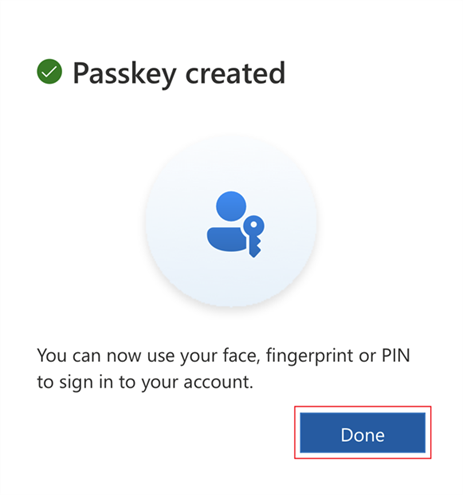
- After the passkey is created, tap Done.
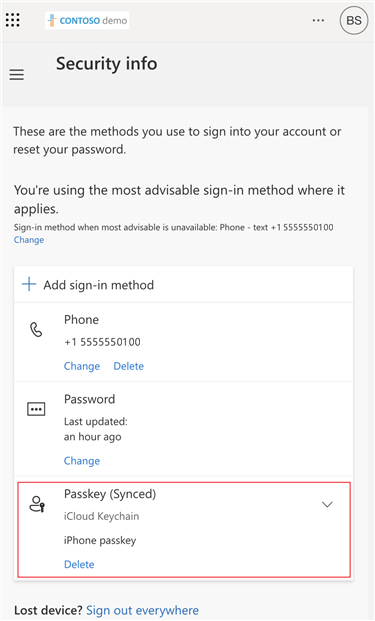
- You can see your passkey in Security info.
Use Microsoft Authenticator (iOS)
You can sign in to Authenticator to create a passkey in the app and get seamless single sign-on across Microsoft native apps. This flow is the recommended way to set up a passkey in Authenticator. If you're signed in or already have an account in Authenticator, you still need to complete these steps to add a passkey in Authenticator.
- Download Authenticator from the App Store, and go through the privacy screens.
- Add your account in Authenticator on your iOS device:
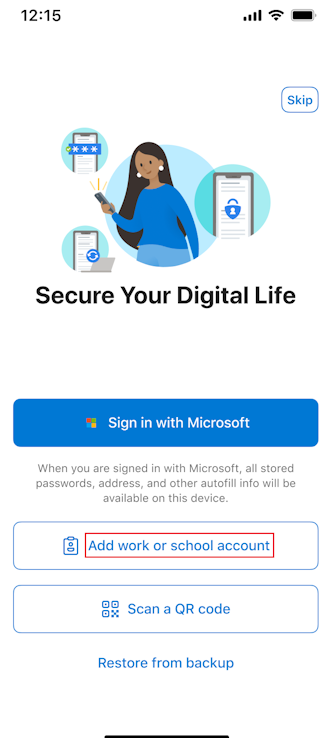
If you installed Authenticator for the first time on your device, on the Secure Your Digital Life screen, tap Add work or school account.
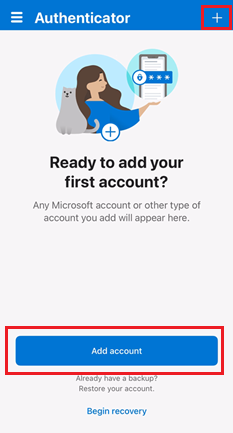
If you installed Authenticator on your device but you didn't add an account, tap Add account or the + button, and select Work or school account. Then tap Sign in.
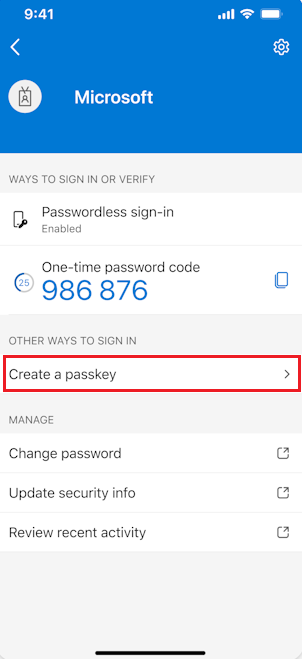
If you already added an account in Authenticator, tap your account, and then tap Create a passkey.
- Complete multifactor authentication (MFA).
- If necessary, tap Settings and set up a screen lock.

- Tap Settings to enable Authenticator as a passkey provider.
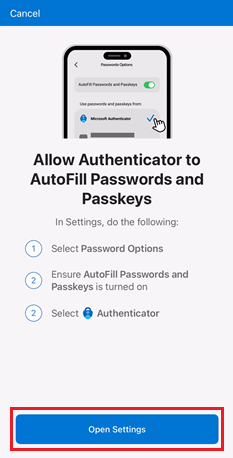
- On your iOS 18 device, go to Settings > General > Autofill & Passwords. On your iOS 17 device, go to Settings > Passwords > Password Options.On both operating systems, make sure that AutoFill Passwords and Passkeys is turned on. Under Autofill From, make sure that Authenticator is selected.
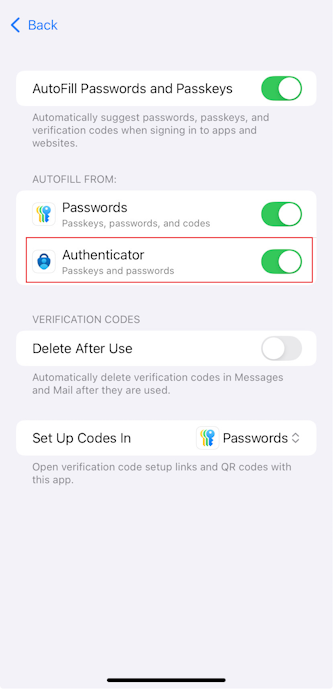
- After you return to Authenticator, tap Done to confirm that you added Authenticator as a passkey provider. Then you can see Passkey added as a sign-in method for your account. Tap Done again to finish.

Authenticator sets up passkey, passwordless, and MFA for sign-in according to your work or school account policies. Tap your account to see information, including your new passkey.
