
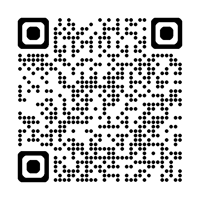
- Scan the QR code with your phone’s camera and open the link that appears, or go directly to aka.ms/mfasetup.
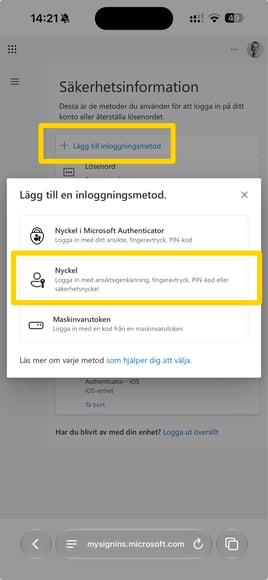
- Sign in if prompted, then select "Add sign-in method" and choose "Passkey"
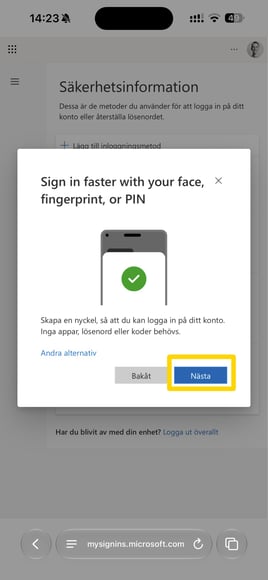
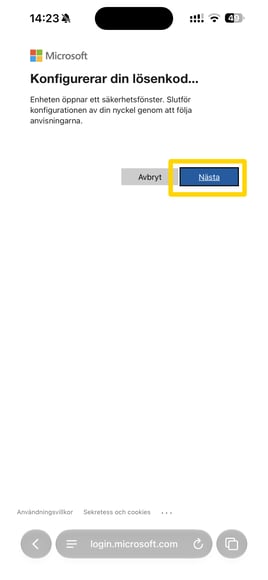
- Click "Next", then click "Next" again
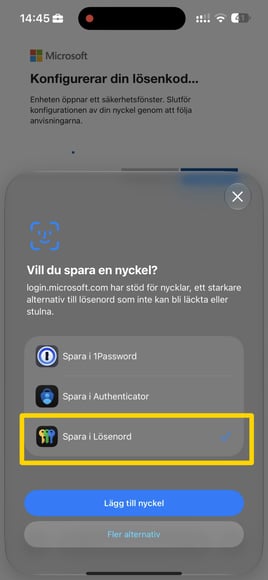
- Select "Save in Passwords"

- Verify your identity again using your password and/or multi-factor authentication (MFA)
- Give your Passkey a name and click "Next"

- Done! Your Passkey is now linked to your account and ready to use
